
How to properly clean the keyboard - daily and in-depth methods
How to properly clean the keyboard - daily and in-depth methods A clean and properly maintained keyboard is not only pleasing to the eye, but also a guarantee of health and a longer service life of the device. We use the keyboard every day and we don't even think about how much dirt, bacteria and other invisible pests accumulate on it. Whether you work from home or in the office, regular cleaning for
How to properly clean the keyboard - daily and in-depth methods
A clean and properly maintained keyboard is not only pleasing to the eye, but also a guarantee of health and a longer service life of the device. We use the keyboard every day and we don't even think about how much dirt, bacteria and other invisible pests accumulate on it. Regardless of whether you work at home or in the office, regular cleaning will ensure not only hygiene, but also smooth operation of the keyboard. In this article
Why it is important to clean the keyboard - health and longevity of the device
You probably don't think that the keyboard can be one of the dirtiest things you use every day. Research shows that the average keyboard can contain up to 20,000 times more bacteria than a toilet seat. Using a dirty keyboard puts us at risk of spreading colds, flu or other diseases, especially if several family members or colleagues share the same keyboard.
Apart from the health aspect, an unattended keyboard wears out faster. Accumulated dirt, food residues, hair and dust prevent the buttons from working properly, they start to get stuck, stop responding to presses or simply break. Regular maintenance of computer accessories prevents frequent breakdowns and saves time and money that would otherwise be spent on a new device.
Regular cleaning ensures not only hygiene, but also comfort when using the device. Clean buttons are more responsive to clicks, which is especially important for gamers or those who type a lot. Thus, cleaning the keyboard is a necessary part of computer hygiene, helping to maintain good health and extend the life of the device.
Daily keyboard maintenance
To keep the keyboard clean, it is not necessary to perform a deep cleaning every time. Simple, everyday actions can help prevent more dirt build-up and ensure hygiene. Always turn off the computer and disconnect the keyboard from the power source before starting any cleaning to avoid short circuits and other problems.
Start with the easiest way - turn the keyboard upside down and shake it gently to dislodge the larger dirt. This step can be done daily at the end of work or at least once a week. This will help get rid of crumbs, hair and other debris that gets between the buttons every day.
Another effective method is the use of compressed air. Special cans of compressed air, available at electronics stores, are great for blowing dust and fine dirt out of the gaps between the keys. Hold the can at a 45-degree angle and use short blasts to clean the keyboard so that dirt is blown out rather than pushed in deeper.
If you don't have compressed air, you can use a small handheld vacuum cleaner with a brush. But be careful - some more powerful vacuum cleaners can dislodge or even pull out the keys, so it's better to choose models that are specifically designed for electronics, with lower power.
For surface cleaning, use a micro cloth lightly moistened with water or a special electronics cleaner. It is important that the cloth is only slightly damp, not wet - liquids can damage electronic components. Use a gentle circular motion to clean each key individually, paying special attention to the most frequently used keys.
Disinfection is also an important part of the daily routine, especially if several people use the keyboard. Special disinfectant wipes for electronics are suitable for this. They are usually soaked in isopropyl alcohol, which evaporates quickly and leaves no moisture behind. Before using any cleaner, make sure it is suitable for electronics.
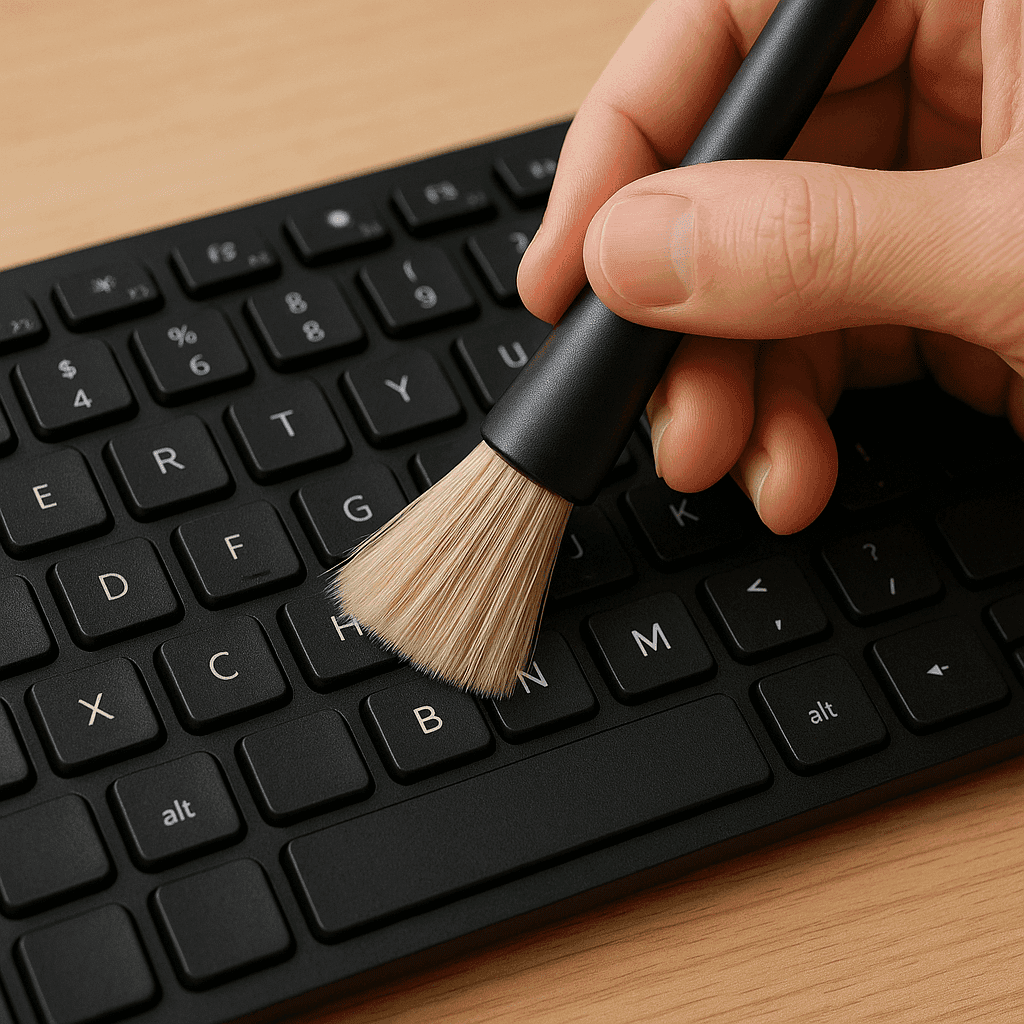
Simple household items are also perfect for daily cleaning. An adhesive strip can be used to clean the spaces between the keys - simply fold it in half (sticky side out) and insert it between the keys to collect dirt. A soft brush or toothbrush is also great for removing dust from hard-to-reach places.
The recommended frequency of daily cleaning depends on the intensity of use. If you use the keyboard for several hours every day, it is advisable to perform a light cleaning at least once a week. If the environment is dusty or you often eat near the keyboard, cleaning should be done more often.
Anyone looking for a convenient solution can consider a set of professional cleaning tools, which includes everything you need for regular keyboard maintenance, from special brushes to eco-friendly cleaners. Such kits save time and ensure that the right tools are used.
Deep cleaning methods for keyboards (including after spills)
While daily maintenance is important, periodic deep cleaning of the keyboard is also necessary to remove deeper-seated dirt and bacteria. Deep cleaning is recommended once every few months, depending on the intensity of use, or immediately after liquid is spilled on the keyboard.
How to remove the keys and clean under them
Before you start removing the keys, make sure that your keyboard model allows it. Many external keyboards have removable keys, but for laptops this can be more complicated and require professional help.
To remove the keys of an external keyboard, use a special key remover, which is often included in the kit, or tools suitable for home conditions, such as a credit card or a flat screwdriver. Gently insert the tool under the edge of the key and carefully lift. It is important not to bend or damage the plastic brackets that hold the keys in place.
After removing the keys, take a picture of the keyboard so you know where each key belongs later. This is especially important if you remove all the keys at once. Then you can put the keys in a bowl of warm soapy water and gently wash them. Then dry well before putting it back.
Clean the keyboard base where the keys were located using a cotton swab moistened with isopropyl alcohol or a micro cloth. This alcohol perfectly removes grease and dirt, and most importantly, it dries quickly. Don't forget to get into all the nooks and crannies where the most dirt accumulates.
Once the keyboard and keys are completely dry, you can start putting the keys back on. Make sure that each key engages well - you should feel a slight click as it clicks into place. Place them according to the photo taken earlier to avoid mistakes.
What to do if liquid is spilled on the keyboard
When liquid is spilled on the keyboard, quick response is crucial. Turn off the computer immediately, and if it's an external keyboard, disconnect it from the computer. Turn the keyboard upside down so that the liquid doesn't flow deeper inside, and keep it in that position for as long as possible.
Absorb as much liquid as possible using a paper towel or clean cloth. Try not to touch the buttons as this can push the liquid deeper. If the spilled liquid was sticky (such as juice or coffee with sugar), more intensive cleaning may be required.
After removing the liquid, allow the keyboard to dry completely, which may take 24 to 48 hours. Do not use the keyboard until it is completely dry. Do not use a hair dryer or other heat sources for drying, as the heat may melt plastic parts or damage electronic components.
If the keyboard has been heavily spilled, or if the keys are still sticky or non-functioning after drying, deep cleaning by removing the keys as described above is required, or even professional help.
Spills on the laptop keyboard complicate the situation as the liquid can reach internal parts and cause a short circuit. In this case, it is best to immediately turn off the computer, remove the battery (if possible), turn the computer upside down and contact a specialist.
If you have spilled water, it is likely that the keyboard will still work after drying. However, in the case of coffee, tea, juice or alcohol, a deep cleaning is necessary because sugar and other solutions can stick the mechanical parts together and cause malfunctions.
Use special tools to clean electronics. Isopropyl alcohol (90% or more) is one of the best tools for cleaning electrical components because it effectively removes dirt and evaporates quickly without leaving moisture behind. You can use a cotton swab moistened with alcohol to clean the individual parts.
If the keyboard still does not work after drying and deep cleaning, or if there is obvious physical damage, contact professionals. Sometimes it is more economical to replace an external keyboard with a new one than to try to repair a seriously damaged one.
Keeping Your Keyboard Clean - Prevention and Best Practices
Prevention is always better than cure, so it's worth following certain practices to help keep your keyboard clean for longer. First and foremost, always wash your hands before using the computer. It's a simple but effective way to reduce the transfer of grease, bacteria and dirt to the keys.
Avoid eating at the computer or, if unavoidable, use a protective keyboard cover to prevent crumbs and liquids from getting between the keys. Such covers are easy to clean and can be removed when deep cleaning is required.
If you work in a dusty environment or the computer is not used for a long time, cover the keyboard with a special cover. This will protect against dust accumulation and other environmental factors that can damage your device.
Check the condition of the keyboard regularly and pay attention to the following signs that indicate the need for a deep cleaning:
keys start to jam or press hard;
layers of dirt are visible between the keys;
an unpleasant smell is felt;
some keys sometimes stop working;
keyboard looks shiny with grease.
There are several factors to consider when choosing between self-cleaning and professional services. For simple external keyboards, home cleaning is usually sufficient, but for expensive mechanical keyboards or laptop keyboards, it is sometimes worth investing in professional cleaning, especially if you notice malfunctions.
Professional computer service technicians have the tools and knowledge to safely disassemble and clean complex keyboards without risking damage to sensitive electronic components. They can also perform preventive checks that help prevent future problems.
A regular keyboard maintenance plan may look like this:
daily - shake and wipe off dust with a micro cloth;
once a week - use compressed air and disinfectant wipes;
once a month - perform basic cleaning (compressed air, alcohol, adhesive tape);
every 3-6 months - perform a deep cleaning by removing the keys;
once a year - Consider going to the pros for a complete maintenance.
By following these recommendations, you can ensure that your keyboard stays clean, hygienically safe to use, and most importantly, it lasts longer and more efficiently. Remember that prevention is almost always cheaper than repairing malfunctions or buying a new device.
If, however, you are facing more serious problems, such as persistent button jams, non-functioning keys, or visible physical damage, we recommend that you contact professional computer repair service providers who will assess the situation and offer the most appropriate solution.
Summary
Regular cleaning of the keyboard is not just an aesthetic matter – it is a necessary practice that ensures the longevity of the device and your health. Daily maintenance, such as dusting and disinfection, prevents the accumulation of dirt and bacteria. Periodic deep cleaning, including removing the keys and cleaning the base, helps refresh the device and remove hard-to-reach dirt.
In the case of liquid spills, a quick reaction is crucial - switch off the device immediately, remove the liquid and allow it to dry completely before using it again. Prevention, such as washing hands before using the keyboard and avoiding eating at the computer, can significantly reduce the need for cleaning.
Add regular keyboard cleaning to your hardware maintenance routine and you'll notice a difference not only in ease of use, but also in the life of your device. Whether you're using an external keyboard or a laptop keyboard, proper maintenance will ensure years of smooth and efficient operation.
FAQ (Frequently Asked Questions)
How often should I clean my keyboard?
Daily maintenance (dust removal, disinfection) is recommended once a week if you use the keyboard regularly. Deep cleaning (removing the keys) should be done every 3-6 months, depending on the intensity of use and environmental conditions. If the keyboard is used by several people or in a dusty environment, clean it more often.
What is the safest way to remove dust between the keys?
The safest method is to use compressed air, holding the can at a 45 degree angle and spraying in short bursts. You can also use a soft brush or a special cleaning gel that attaches to dirt between the keys and pulls it out. It is important that the keyboard is turned off or disconnected from the power supply.
Is it safe to use disinfectant wipes on the keyboard?
Yes, it is safe to use disinfectant wipes that are specifically designed for electronics or that are based on isopropyl alcohol. It is important that the wipes are barely damp, not wet. Squeeze out excess liquid before use and never spray disinfectant directly on the keyboard.
What if I spill liquid on the keyboard?
Shut down the computer and disconnect the keyboard from power. Turn the keyboard upside down so the liquid doesn't run deeper and absorb as much liquid as possible with paper towels. Allow to dry for at least 24-48 hours at normal room temperature. Do not use a hair dryer or other heat sources. If the keyboard still does not work after drying, perform a deep cleaning or contact s
Can I remove all keys on the keyboard for deep cleaning?
For most external keyboards, all keys can be removed using a special key puller or a flat tool (such as a credit card). Be careful with laptop keyboards - not all models have easy-to-remove keys. Before removing the keys, check the manufacturer's instructions or check online for the specific model of your keyboard.