
iPhone won't turn on?
iPhone Won't Turn On: Causes, Troubleshooting, and Solutions When your iPhone won't turn on, it can be a serious concern as smartphones have become an integral part of our lives in today's world. This common glitch can have a variety of causes, from simple battery issues to more complex software or hardware failures. It is important to know that many
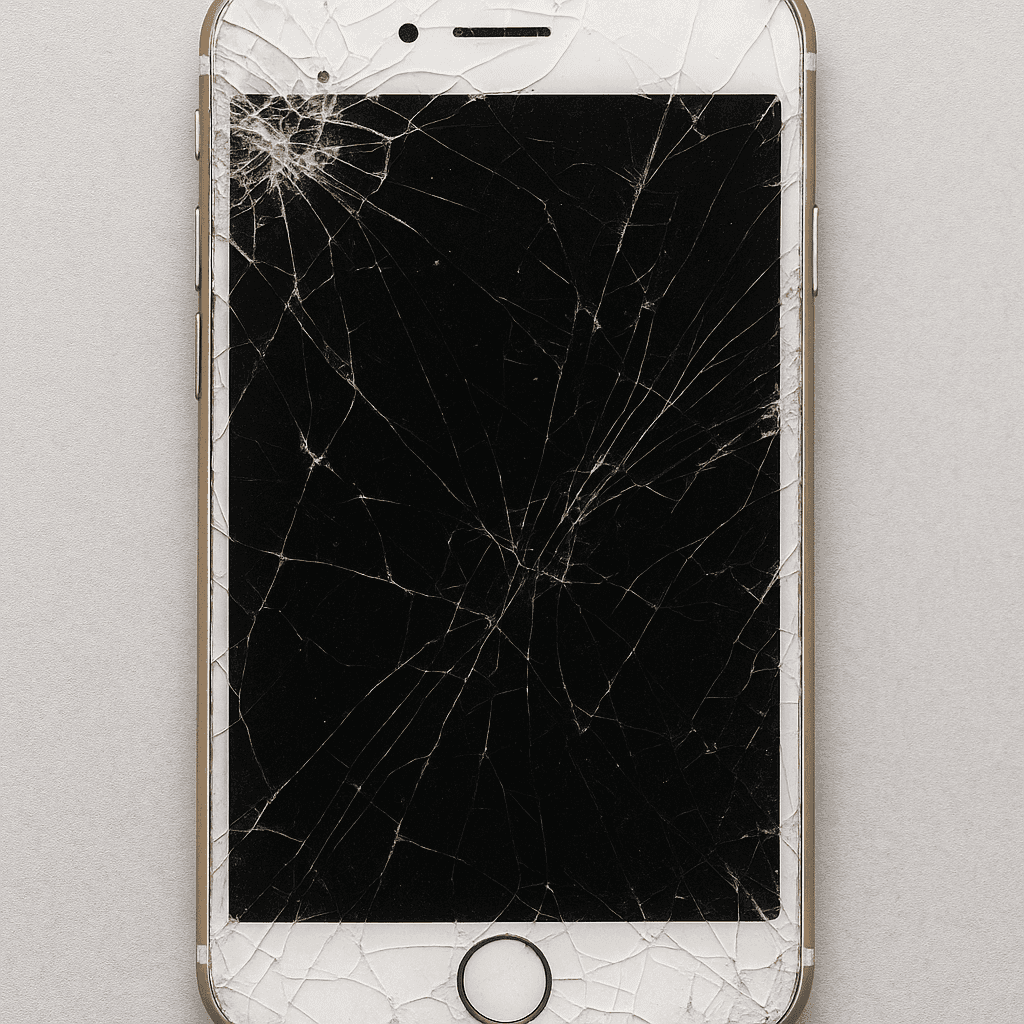
iPhone Won't Turn On: Causes, Troubleshooting, and Solutions
When iPhone won't turn on, it can be a serious concern, after all, in today's world, the smartphone has become an integral part of our lives. This common glitch can have a variety of causes, from simple battery issues to more complex software or hardware failures. It's important to know that in many cases the solution can be quite simple and not require
In this comprehensive guide, we will discuss the most common reasons why your iPhone won't turn on, provide detailed steps on how to fix this problem yourself, explain when it's worth trying to fix it yourself and when it's time to call a professional, and give you a clear idea of what to do next. A simple system reboot can often solve many problems, but there are other times that you should be aware of
Common Reasons Why iPhone Won't Turn On
An iPhone that won't turn on can have a variety of reasons. Differentiating whether the problem is software, battery, or hardware related is important for effective troubleshooting.
Battery problems
The most common and simplest reason is a completely discharged battery. If your iPhone has been discharged for a long time, it may need at least 15-30 minutes of charging before it turns back on. It is also worth considering the age of the battery - after 2-3 years of use, the battery capacity may decrease significantly.
Charging problems
The problem can be caused by a faulty charger, a damaged cable or a dirty charging port. Dust, dirt, or even small debris can prevent the charger from connecting properly. It's worth checking and cleaning the charging port and trying a different charger and cable.
Software errors
iPhone won't turn on after update? This could be related to iOS update errors or software conflicts. Sometimes the system can "stuck" during the update, so the phone does not respond and does not display the video.
Screen problems
Sometimes the device may be on but the screen is not working. You may notice that your phone vibrates, makes sounds, or even heats up, even though the screen remains black. In this case, the problem may be with the display connector or the display itself.
Physical damage
If the phone is dropped or submerged in water, it may experience hardware failures that prevent it from turning on. Damage to the internal components, especially the motherboard, can be a serious reason why the device does not work.
Overheating
The iPhone, like other electronic devices, has protection mechanisms that prevent the device from turning on if it overheats. This protects the internal components from damage, but may cause temporary power-up problems.
Hardware failures
In rare cases, the problem may be related to more serious internal component failures, such as the power controller or logic board. Such faults usually require professional repair.
Basic Troubleshooting Steps: Home Solutions
Before you take your phone in for service, there are a few surefire steps you should try that often solve power-on problems.
Check the charging and port
Make sure you are using a working charger and cable (ideally an original Apple charger)
Gently clean the charging port using a soft brush or compressed air
Try to charge the phone for at least 30 minutes
watch for a charging indicator (battery icon on screen)
Force Reboot iPhone
A hard reset (or force reset) often resolves software issues that cause the phone to become unresponsive. The procedure varies depending on your iPhone model:
iPhone 8, SE (2nd generation) and later models:
Briefly press and release the Volume Up button
Briefly press and release the Volume Down button
Press and hold the Side button until the Apple logo appears on the screen
iPhone 7 and iPhone 7 Plus:
Press and hold the Volume Down and Power buttons at the same time
Hold until the Apple logo will appear on the screen
iPhone 6s and earlier models:
Press and hold the Home and Power buttons at the same time
Hold until the Apple logo appears
Watch for any signs
Pay attention to any signs that the phone is “alive”: vibration, sounds, screen flashing or short light. This can help determine if the problem is just the screen or the entire device.
Recovery Mode and iTunes Reset
If your iPhone turns on but gets stuck on loading or on the update incomplete screen, it's worth trying recovery mode:
Connect iPhone to a computer with the latest iTunes or Mac with Finder
Perform a forced reboot (as described above), but don't release the buttons when the Apple logo appears
Hold the buttons until the "Connect to iTunes" or computer message appears on the screen
iTunes or Finder will offer to restore or update the device
Attention: Restoring via iTunes/Finder deletes all data from the phone, so it is important to have a backup. If you don't have a backup, try the "Refresh" function first, which tries to fix the problem without deleting data.
Solutions after iOS update problems
If iPhone won't turn on after update, you can try these additional steps:
wait at least an hour - sometimes updates take longer than expected
try DFU (Device Firmware Update) mode - this is a deeper recovery method when none of the normal functions help
use third-party iOS recovery software (such as Tenorshare ReiBoot or Dr.Fone)
When seek professional repair
Sometimes self-troubleshooting methods do not help, and this is a sign that the problem should be handled by professionals.
Clear signs of professional repair
phone does not respond to any of the above tests
device gets unusually hot when trying to turn it on
obvious signs of water or physical damage are visible
unusual noises are heard from inside the phone
phone has recently been wet or dropped from a great height
Apple service and warranty
It is worth checking the warranty status of your iPhone before seeking service. You can do this on Apple's website by entering your device's serial number. Warranty repair can be free of charge if:
your phone still has a valid standard 1-year warranty
you have AppleCare+ additional protection
the problem is due to manufacturing defects
When contacting Apple service, you will be assured that original parts will be used and the work will be performed by certified specialists.
Repair prices and expectations
If the warranty is no longer valid, it is worth knowing the approximate repair prices:
battery replacement: 49-99 EUR (depending on the model)
screen replacement: 150-350 EUR (depending on the model)
repair of the logic board: 300-600 EUR (this is the most expensive part)
Before deciding on an expensive repair, it is worth calculating whether it is more economical to buy a new device, especially if the current model is several years old.
Data security and preparation for repair
Before handing in the phone for repair, it is important to take care of data security:
if possible, make a backup copy of the data
remove the SIM card
if the phone was connected to Apple ID, be sure to have the password (this will be needed after the repair)
note important information about your phone (serial number, IMEI)
When contacting the service, be ready to specify all the details of the problem - be ready when the problem started, what tests have already been done and what circumstances you noticed before the phone stopped working.
How to avoid iPhone power-on problems in the future
Prevention is the best protection. By following these tips, you can reduce the risk of encountering similar problems in the future.
Good charging practices
use only certified chargers and cables, preferably original Apple or MFi certified ones
regularly clean the charging port from dust and dirt
avoid intensive use of the phone while it is charging
do not let the phone overheat while charging - remove the protective case if the phone starts to heat up
Update management
before installing major iOS updates updates, always back up your data
update the system when the phone has at least 50% battery or is connected to the charger
avoid performing updates during a weak Wi-Fi connection - better use a stable home internet
before installing the latest iOS version, it is worth waiting a few weeks and reading other users' experiences
Physical protection
use a quality protective case, especially if you often carry the phone for active activities
use protective glass for the screen
avoid storing the phone in very hot or cold environments
protect the phone from moisture
Regular battery care
Check the battery health regularly (Settings > Battery > Battery health). If the maximum capacity falls below 80%, it is worth considering replacing the battery. Apple recommends replacing the battery every 2-3 years with heavy use.
It is also useful to periodically let the battery discharge to 20% and then fully charge it. However, avoid regularly draining the battery to 0%, as this reduces its lifespan.
System maintenance
restart your phone periodically (at least once a week)
regularly delete unnecessary apps and files
monitor the system for warning messages about battery health or other problems
Conclusion
Although the problem of iPhone not turning on can be worrying, it can usually be solved by simple steps on your own. Start with the basic steps of boot test and force reboot, which often solve most problems. If these methods don't help, move on to more advanced solutions like recovery mode or iTunes reset.
However, it is important to know your limits. If self-tests do not work, if physical damage is visible or unusual sounds appear on the phone, it is best to contact a professional Apple service. Hardware failures, especially logic board problems, require special skills and tools.
Finally, the best prevention is proper phone care. Use quality charging equipment, update your software regularly (with backups), physically protect your phone, and monitor battery health. These simple practices will help reduce the risk of encountering startup problems in the future.
Frequently Asked Questions
What should I do first if my iPhone won't turn on?
Start by charging your phone using a reliable charger for at least 30 minutes, then try a hard reset.
How to force restart iPhone when it is unresponsive?
Follow the specific button combinations depending on your iPhone model - new models require volume and side buttons, older models require home and power buttons.
Can a software update cause my iPhone to not turn on?
Yes, incomplete or broken updates can sometimes cause activation problems. Try using recovery mode via iTunes/Finder to restore your system.
When should I contact Apple Service?
Contact a professional if all self-troubleshooting attempts have failed, or if there is physical/water damage, the phone is overheating, or there are signs of a hardware failure.
Will I lose data if my iPhone won't turn on?
Data loss is possible if hardware repair or system restore is required. Regular backups help protect your information.