
When should you increase your computer's RAM?
When should you increase your computer's RAM memory? RAM (random access memory) is temporary computer memory used to store programs and data while they are in active use. Unlike hard drives or SSDs, RAM is cleared when the computer is turned off. The right amount of RAM is the decisive factor that determines the smooth operation of the computer and the fast operation of programs. Unfortunately, over time pr
When should you increase your computer's RAM?
RAM (random access memory) is temporary computer memory used to store programs and data while they are in active use. Unlike hard drives or SSDs, RAM is cleared when the computer is turned off. The right amount of RAM is the decisive factor that determines the smooth operation of the computer and the fast operation of programs. Unfortunately, over time, software becomes more demanding on the system i
In this article, we'll discuss when it's worth investing in additional RAM, how to recognize the signs of RAM deficiency, and what to look for when choosing new memory boards. We'll also share some practical tips to help you decide whether a RAM upgrade is a worthwhile investment for your particular situation.
What are the signs that additional RAM is needed?
Insufficient RAM usually manifests itself in various computer malfunctions. Recognizing these symptoms will help you determine whether or not your problem is due to a lack of RAM.
Computer running slowly or freezing - If you notice that your computer starts to freeze during normal activities, especially when you open several programs at the same time, this can be a clear sign that you are running low on RAM. In this case, the system is forced to use virtual memory on the hard disk, which significantly slows down performance.
High RAM usage in task manager – If you consistently see RAM usage at 80-100%, even with only a few programs open, your computer probably needs a RAM upgrade.
Programs close by themselves - when the operating system runs out of memory, it starts to close less important programs to free up resources for more important ones.
Long app load times – If apps that used to run fast now take significantly longer to load, this may indicate a lack of RAM.
Increased activity of the hard disk - when there is a shortage of RAM, the system starts intensively using the hard disk as virtual memory (so-called "swap" or "pagefile"). Constant blinking of the hard drive LED can be an indication of this process.
The computer does not display the entire content of the screen - sometimes, especially when working with graphics programs, black spots or textures can appear on the screen due to lack of RAM, which do not load completely.
How do I check my RAM usage?
In order to objectively evaluate your computer's RAM memory and its usage, you can use the following tools:
In the Windows environment: press Ctrl+Alt+Delete and select "Task Manager". In the "Performance" tab you will be able to see the RAM usage.
On a Mac: Open the Activity Monitor program via Spotlight (Cmd+Space) or Launchpad.
In a Linux environment: use "System Monitor" or terminal commands like "free -m" or "top".
It is important to distinguish low RAM issues from other performance issues. For example, slow internet, malware, or a worn hard drive can also cause similar slowdown symptoms, but increasing the RAM would not make much difference in such cases.
Benefits of Increasing RAM
Additional RAM can dramatically improve your computer's performance in many ways. Here are the main benefits you can expect from a RAM upgrade:
Work more efficiently with multiple programs at the same time - with enough RAM, you can easily run several demanding programs at once, switch between them without limits and avoid crashes.
Better performance when working with complex applications - video editing, photo editing, 3D modeling or design applications will run much more smoothly. The program will be able to store large files in RAM instead of constantly moving them to virtual memory on the hard drive.
Convenient Internet browsing with many open tabs - modern browsers use a lot of memory, especially when dozens of tabs are open. A larger RAM will allow you to surf the Internet without interruptions and long loading times.
Smoother Gaming Performance – Modern games often require 8GB or more of RAM to ensure stable frame rates and fast loading of the game world.
Better compatibility with the latest operating systems - Newer versions of Windows or macOS become more demanding, so more RAM will help ensure smooth system operation after updates.
Virtualization Capabilities – If you use virtual machines for testing or other tasks, additional RAM is necessary for them to run efficiently.
However, it is important to understand that increasing RAM has certain limits. For example, if your processor is old and slow, even a huge amount of RAM will not make your computer significantly faster. It's also important to keep in mind that some tasks (such as system startup) will be more affected by installing an SSD than increasing RAM.
Technical considerations before upgrading memory
Before purchasing additional RAM, it is necessary to evaluate certain technical limitations and compatibility issues to avoid purchasing incompatible equipment.
How to Determine What RAM is Right for You
Amount and Type of Existing Memory – The first thing to do is find out how much RAM you already have and what type (DDR3, DDR4 or DDR5). You can find this information in "System Information" on Windows computers or "About This Mac" on Apple devices.
Number of free memory slots - Check if there are still free RAM slots on your computer's motherboard. Desktop computers usually have 2-4 slots, while laptops have 1-2.
Maximum amount of RAM supported - Each motherboard has a limit on how much maximum RAM it can support. This information is indicated in the technical specification of the computer or motherboard.
RAM module format - DIMM modules are required for desktop computers and smaller SO-DIMM modules for laptops.
Operating System Limitations
Even if your computer hardware can support a large amount of RAM, the operating system may have its own limitations:
32-bit operating systems can only use a maximum of 4 GB of RAM, even if more is physically installed.
64-bit operating systems can theoretically use much more RAM (up to several terabytes), but different versions (eg Windows 10 Home vs. Professional) may have different limitations.
How to check compatibility
To avoid mistakes when buying RAM, you can:
Use special programs like CPU-Z that provide detailed information about the available RAM.
Visit the manufacturer's website to view the specifications of the computer or motherboard.
Use online tools like Crucial Memory Advisor or Kingston Memory Finder, which help you identify the right type of RAM based on your computer model.
Important Compatibility Details
When choosing new RAM, pay attention to the following aspects:
RAM Frequency (MHz) - New modules should match the frequency of existing modules or the frequency supported by the motherboard.
CL Time (CAS Latency) - lower numbers mean faster response time.
Voltage - RAM modules must operate at a voltage supported by your system.
Dual-channel or quad-channel mode - for maximum benefit, modules should be installed in pairs in identical configurations.
If your computer has already used up all the RAM slots, you can consider replacing the existing memory with modules of higher capacity. It is also worth noting that Windows systems can use the ReadyBoost function, which allows you to use a USB flash drive as additional virtual memory, but it is not a full-fledged replacement for RAM.
Is a RAM upgrade worth the investment? Cost-benefit analysis
When deciding whether it is worth investing in additional RAM, it is important to evaluate not only the technical benefits, but also the financial side. This upgrade can be one of the most cost-effective ways to improve your computer's performance, but it's not always the most optimal solution.
Comparison of prices and alternatives
The average price of an 8GB RAM module currently ranges from 30 to 60 euros, depending on the type and manufacturer.
Compared to other upgrades, RAM is a relatively inexpensive alternative - SSDs start at 50-60 euros, while a new processor can cost 150-300 euros or more.
The price of a new computer usually ranges from 400 to 1000+ euros, so an investment of 30-100 euros in RAM can significantly extend the life of an existing computer.
When RAM upgrades are most beneficial
RAM upgrades are especially beneficial in the following situations:
When the computer has less than 8 GB of RAM and is used for daily work with several programs.
For professional users working with graphics editing, video editing or 3D modeling programs.
For gamers looking to improve their gaming performance, especially if their existing system has less than 16GB of RAM.
For virtual machine users who need to run multiple operating systems at the same time.
For computers with SSD drives, where RAM becomes the main performance limiting factor.
When RAM upgrades may not be effective
There are situations where RAM upgrades alone will not bring the expected benefits:
Very old computers (5+ years) with slow processors - in which case the processor will become the main performance limiting factor.
When the system already has enough RAM (eg 16+ GB) for normal work and does not use specialized applications.
When the main problem is a slow hard drive - in which case installing an SSD would give a significant performance boost.
When the computer has reached the maximum amount of supported RAM or has no free slots.
Balance between upgrades
Often the most optimal solution is to upgrade several components instead of one:
Upgrading RAM and SSD together gives the biggest performance increase on older systems.
If you're on a budget and using your computer for everyday tasks, start by increasing your RAM to at least 8GB.
At least 16 GB of RAM and a fast SSD are recommended for specialized users.
In general, upgrading RAM is one of the most cost-effective investments in computer performance, especially if you notice clear signs of low memory. But before investing, it's a good idea to run system diagnostics to make sure that RAM is your computer's weak point.
Step by Step: How to Upgrade Your Computer's RAM
If you've decided that a RAM upgrade is the right solution for your computer, here's a step-by-step guide on how to do it yourself. Installing RAM modules is one of the simplest procedures for upgrading a computer, but it is important to follow certain safety rules.
Preparation
Back up your data – While swapping RAM rarely poses a risk of data loss, it's always a good idea to back up your important files.
Gather the necessary tools: a Phillips screwdriver (for desktop computers) or a small Phillips screwdriver (for laptops).
Purchase the correct RAM modules according to the compatibility requirements discussed above.
Turn off the computer, disconnect the power cord and all external devices.
Discharge static electricity by touching a grounded metal object or by wearing an anti-static wrist strap.
Installing RAM in a desktop PC
Open the computer case by unscrewing the screws on the side or back.
Locate the RAM slots - they are usually located near the CPU in a row.
If you are replacing old modules, loosen the locking clips on both ends of the slot and carefully pull out the old module.
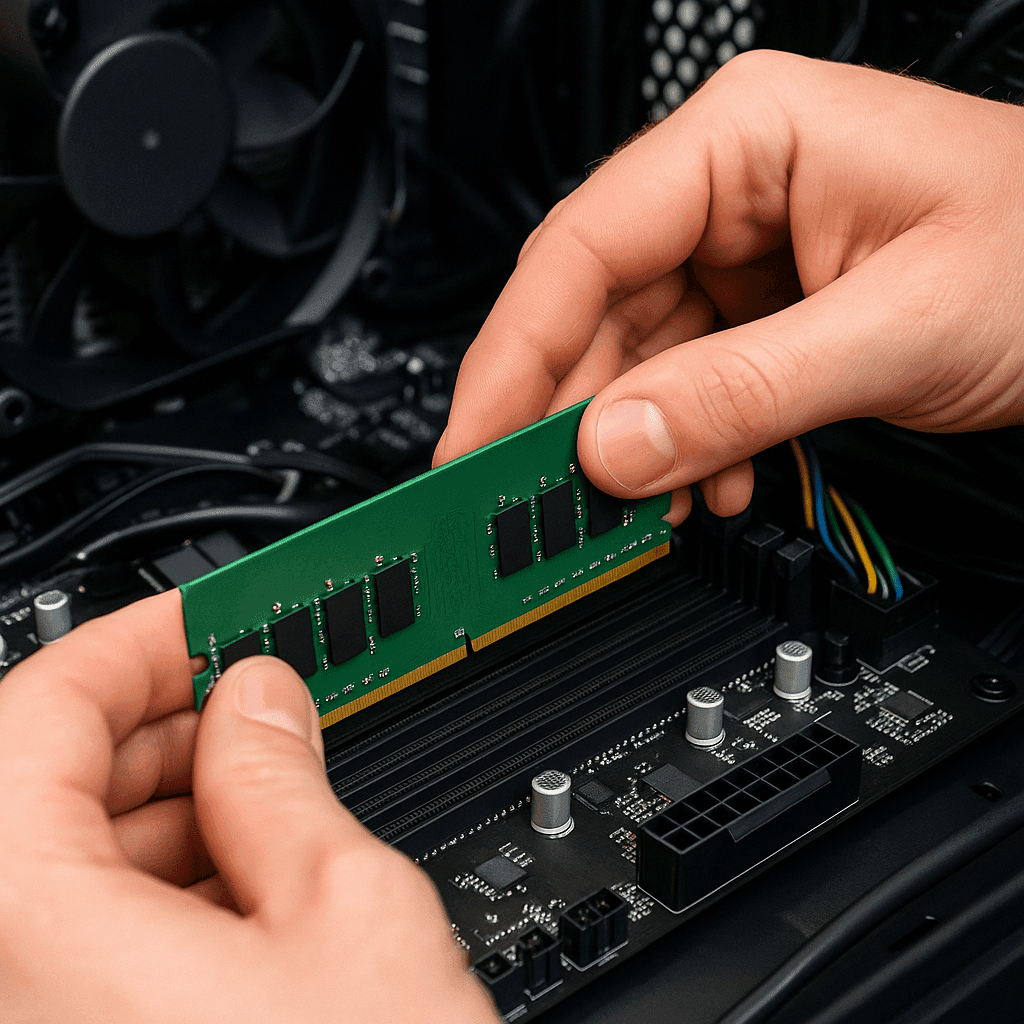
Insert the new RAM module into the slot, aligning the notch on the bottom of the module with the tab on the slot. Press down evenly until the clips engage.
Make sure the module is firmly seated and locked.
Close the computer case and connect all cables.
Installing RAM in a Laptop
Locate the RAM compartment cover on the bottom of the computer (on many new laptops RAM is not easily accessible and may require disassembly of the entire case).
Loosen the screws and remove the cover.
If you are replacing an old module, loosen the locking clips and pull it out at an angle of 30 degrees.
Insert the new module into the slot at a 30-degree angle, then press down until it clicks into place.
Place the cover and tighten the screws.
Post-installation check
Connect the power cord and turn on the computer.
If the computer does not turn on or beeps, turn it off and check that the RAM modules are installed correctly.
After the computer turns on, check if the system recognizes the new memory: Windows: Open the "System" window (press Win+Pause/Break) or the task manager.
macOS: Open About This Mac from the Apple menu.
Linux: Use the free -m command in the terminal.
Tips and Warnings
Never touch the contacts of RAM modules - hold the modules by their edges.
If you are not sure about your abilities, it is better to consult a professional - installing RAM incorrectly can damage computer components.
Replacing RAM on laptops can be difficult and in some cases may void your warranty.
In some newer ultrabook models, the RAM modules may be soldered to the motherboard, making them impossible to replace.
If your computer is unstable after installing new RAM, try running the Windows Memory Diagnostic tool or the memtest86 program to check for memory errors. Sometimes you may need to update the BIOS to allow the system to properly recognize higher capacity modules.
Conclusions
Increasing RAM can be one of the most effective ways to revive a sluggish computer and improve its performance when working with modern applications. This investment is especially worth it when you notice clear signs of low memory such as slow performance, crashes, or app crashes when opening multiple apps at once.
Before purchasing additional RAM, be sure to find out the technical limitations of your computer and make sure you are purchasing compatible modules. Remember that for aging computers with slow processors, increasing the RAM alone may not give the expected result - in such cases it is worth considering a complex upgrade or the purchase of a new computer.
RAM upgrade is a relatively inexpensive and simple procedure that many users can do themselves, especially if they have a desktop computer. However, if you are not sure about your technical abilities or you have a modern laptop, you should contact the professionals.
Regularly monitor your computer's resource usage and take into account the nature of your work - this will help you identify in time when a RAM increase can benefit your productivity and the quality of your computer's performance.
Frequently Asked Questions
How do I know if my computer needs more RAM?
If your computer slows down when multitasking, you see nearly 100% memory usage in task manager, or new programs struggle to launch, you probably need a RAM upgrade.
What is the maximum amount of RAM my computer can support?
The maximum amount of RAM depends on your motherboard and operating system. Check the specifications of your computer model and make sure you are using a 64-bit operating system if you want to use more than 4GB of RAM.
Which improves performance better, increasing RAM or installing an SSD drive?
Increasing RAM improves multitasking and heavy-duty applications, while an SSD significantly speeds up system startup and overall performance. For best results, update both components if possible.
Can I install RAM myself or is it better to go to professionals?
Installing RAM on desktop computers is usually a straightforward procedure, but on laptops or unusual systems, it is better to seek professional help to avoid damage.
Does extra RAM help with gaming and creative work?
Yes, additional RAM allows smoother gaming and more efficient work with large files in creative applications, if the processor and graphics card are also powerful enough.